1. Pasiuna
The NETUM CS7501 is an upgraded, mini portable 1D and 2D barcode scanner designed for efficient inventory management and data capture across various platforms. Featuring Bluetooth, 2.4G wireless, and USB wired connectivity, it offers versatile integration with Android, iOS, PC, and POS systems. This manual provides essential information for setting up, operating, and maintaining your CS7501 scanner.

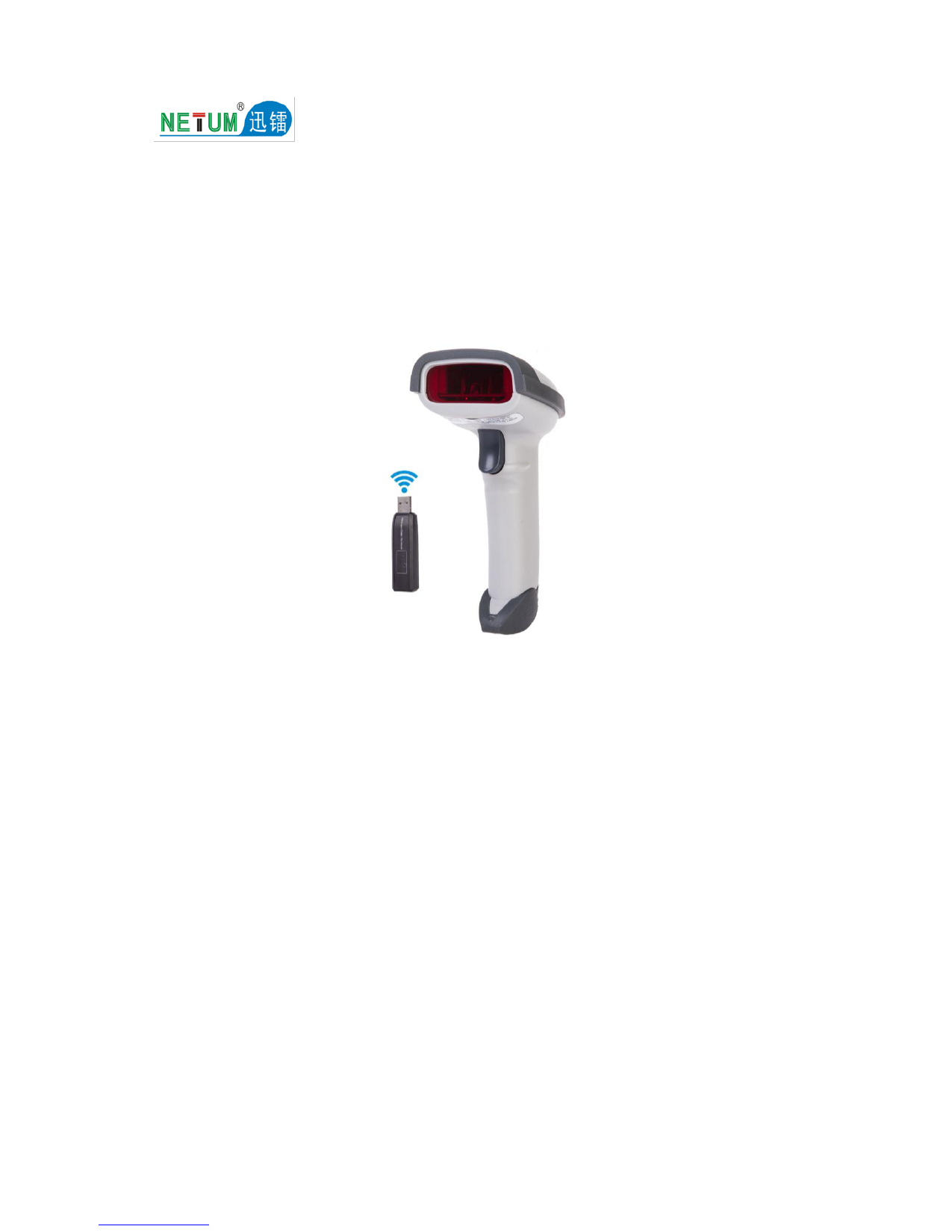
Figure 1: NETUM CS7501 2D Barcode Scanner
2. Mga Sulod sa Pakete
Palihug tsek ang kahon para sa mosunod nga mga butang:
- NETUM CS7501 Barcode Scanner
- USB Dongle (for 2.4G Wireless connection)
- USB Charging/Data Cable
- Quick Start Guide (if included)
3. Tapos sa Produktoview
The CS7501 scanner is designed for durability and user comfort, featuring an ergonomic build and robust materials.
3.1 Pangunang mga Bahin
- Physical Power Switch: Easily switch between Power Off, Bluetooth Mode, and 2.4G Wireless Mode.
- Baterya Indicator Kahayag: Unique LED indicators clearly display the remaining battery level, preventing unexpected power loss.
- High-Resolution CMOS Sensor: Equipped with a 1280×800 megapixel CMOS sensor for effortless scanning of 1D and 2D barcodes from various surfaces, including digital screens.
- Ergonomic nga Disenyo: Shaped to fit naturally in your hand, providing a comfortable grip and reducing fatigue during prolonged use.
- Malungtaron nga Pagtukod: Crafted from upgraded ABS plastic and reinforced with soft TPU material (over 45% coverage) for wear and impact resistance.
- Soft Silicone Buttons: The trigger features soft, resilient silicone for a gentle, cushioned press, minimizing finger fatigue.

Figure 2: Ergonomic Design for Comfortable Use

Figure 3: Upgraded Structure for Enhanced Durability
4. Setup ug Koneksyon
The CS7501 offers three connection methods: Bluetooth, 2.4G Wireless, and USB Wired. Use the physical switch on the bottom of the scanner to select your desired mode.

Figure 4: Connection Mode Switch and Setup
4.1 Bluetooth Koneksyon
- Slide the physical switch on the bottom of the scanner to the mibiya (Bluetooth mode).
- On your host device (smartphone, tablet, PC), enable Bluetooth and search for available devices.
- Locate and select "CPRO barcode scanner" from the list to pair.
- If your device uses a keyboard layout other than US, please configure the correct keyboard language settings on your device before using the scanner.
4.2 2.4G Wireless Connection (via USB Dongle)
- Slide the physical switch on the bottom of the scanner to the husto (2.4G Wireless mode).
- Plug the provided USB dongle into an available USB port on your computer.
- For U.S. keyboard layouts, the scanner should be plug-and-play.
- If you are using a different keyboard layout, refer to your device's "Keyboard Language" settings to configure the correct language before use.
4.3 USB Wired nga Koneksyon
- Connect the scanner directly to your computer using the provided USB cable.
- The scanner will function as a wired device and charge simultaneously.
Important Note: Scanning a setting code to switch between connection modes is not supported. Always use the physical switch on the bottom of the scanner to change modes.
5. Mga Instruksyon sa Pag-opera
5.1 Batakang Pag-scan
- Ensure the scanner is powered on and connected to your host device via your preferred method (Bluetooth, 2.4G Wireless, or USB Wired).
- Open an application on your host device where you want the scanned data to appear (e.g., a text editor, spreadsheet, or POS software).
- Itudlo ang bintana sa scanner sa barcode nga gusto nimong i-scan.
- Press the trigger button. A successful scan will typically be indicated by a beep and/or a green light.
- The decoded barcode data will appear in your active application.
5.2 Barcode Compatibility
The CS7501 is capable of decoding a wide range of 1D and 2D barcodes, including:
- 1D Barcode: UPC/EAN, Code 128, Code 39, Code 93, Code 11, Interleaved 2 of 5, Industrial 2 of 5, Matrix 2 of 5, Standard 2 of 5, Codabar, MSI Plessey, GS1 DataBar, etc.
- 2D Barcode: QR Code, Data Matrix, PDF417, Aztec Code, MaxiCode, etc.
It can scan barcodes from both physical labels and digital screens (computer monitors, smartphones, tablets).

Figure 5: High-Resolution Scanning Capability
5.3 Pagdumala sa Baterya
The scanner is equipped with a 2400mAh high-capacity battery, providing up to 12 hours of continuous operation under heavy use. The battery indicator lights on the scanner provide real-time status:
- 75% - 100%
- 50% - 75%
- 25% - 50%
- 0% - 25%
Charge the scanner using the provided USB cable when the battery level is low.

Figure 6: Real-time Battery Indicator
6. Pagmentinar
6.1 Paglimpyo
- To clean the scanner's exterior, use a soft, slightly damp panapton.
- For the scanning window, use a lint-free cloth and a mild glass cleaner. Avoid abrasive materials or harsh chemicals.
- Ensure the scanner is powered off before cleaning.
6.2 Pagtipig
- Itago ang scanner sa usa ka mabugnaw, uga nga lugar nga layo sa direkta nga silaw sa adlaw ug grabe nga temperatura.
- Avoid storing it in environments with high humidity or corrosive substances.
7. Pagsulbad sa problema
7.1 Kasagarang Isyu ug Solusyon
- Q: Some barcodes cannot be read. Why?
- A: Dirty or unclear barcodes might not be read. Digital barcodes displayed on phones, computers, or tablets can be read by the CMOS sensor, overcoming limitations of traditional laser scanners. The setting for some barcode types may also be off by default. You may need to activate a specific barcode type. Contact customer service if you need assistance identifying or activating specific barcode types.
- Q: Is there a way to add or remove 'Enter' as a suffix after scanning?
- A: Yes, you can refer to the 'Common Function Barcodes' in the full user manual (if available) or contact customer service for specific setting barcodes to configure suffix options.
- Q: The data cannot be sent to my computer.
- A: Ensure you have not accidentally turned on 'inventory mode'. In inventory mode, scans are stored internally instead of being instantly transmitted. To send stored codes, you need to scan the 'Manual data upload' barcode (refer to the full user manual for this specific barcode).
- Q: How to solve messy code problems when using other foreign languages?
- A: The default language setting is English. If you encounter messy codes with other languages, please refer to the 'Keyboard Language' or 'Language Setting' chapter in the full user manual to change the setting on the scanner to match your system's keyboard layout.
8. Mga detalye
| Feature | Detalye |
|---|---|
| Uri sa Produkto | Bar Code Scanner |
| Numero sa Modelo | CS7501 |
| Ngalan sa Brand | NETUM |
| Kolori giladmon | 32 gamay |
| Tipo sa Koneksyon sa Signal | Bluetooth, 2.4G Wireless, USB Wired |
| Uri sa Interface | USB |
| Uri sa Elemento sa Pag-scan | CMOS (1280x800 Megapixel) |
| Bilis sa Pag-scan | 100 nga pag-scan / segundo |
| Pagsulbad sa Optical | 600dpi |
| Pag-scan sa Kahayag nga Tinubdan | Laser Kahayag |
| I-scan ang gilapdon | A4 |
| Kapasidad sa Baterya | 2400mAh |
| Pagsukol sa Drop | 2 meters (6.56 ft) onto concrete |
| Sertipikasyon | CE, FCC, RoHS, UL |
9. Mga Tip sa Gumagamit
- Layout sa Keyboard: Always ensure your scanner's language setting matches your computer's keyboard layout to prevent incorrect character input.
- Mode sa Imbentaryo: If you're not seeing scans appear immediately, check if the scanner is in 'inventory mode'. This mode stores scans internally for later batch upload.
- Pag-monitor sa Baterya: Pay attention to the battery indicator lights to avoid interruptions during critical scanning tasks.
- Optimal Scanning: For best results, ensure barcodes are clean and well-lit. The CS7501 can read from screens, but extreme glare can still affect performance.
10. Garantiya ug Suporta
NETUM products are designed for reliability and performance. For warranty information, technical support, or service inquiries, please contact NETUM customer service through their official channels. Keep your purchase receipt as proof of purchase for warranty claims.
For further assistance, please visit the NETUM Official Store or contact their support team directly.
11. Product Video Overview
Video: NETUM CS7501 Product Overview and Features Demonstration